


Updated: October 2026 · By the KKeyQik Team
Every business posting to social media is running a design operation, whether it thinks of itself that way or not. Every image you publish is a piece of design work — a layout, a type choice, a crop decision — and it either reinforces your brand or quietly works against it. Social media graphic design is the discipline of making those images deliberate: sized correctly for each platform, legible at the speed of a scrolling thumb, and consistent enough that customers recognize you before they read a word.
In our work, the businesses that get the most from social design aren’t the ones with the most dramatic creative. They’re the ones with a system: the right sizes, a small set of repeatable formats, templates a team can actually use, and rules for legibility and accessibility baked in from the start. This article gives you that system. If you want the bigger picture first, our guide to graphic design services for small business covers how social design fits alongside logo, brand identity, and print work.
What follows is a practical reference: the current sizes that matter, the formats worth making more of, the design rules that keep graphics readable in the feed, and how to build a template system so your output stays consistent week after week.
Key Takeaways
- Design for the crop, not the canvas. Each platform displays images at different sizes and aspect ratios, so one master file rarely works everywhere.
- Portrait and vertical formats take up more feed space and are the safer default for mobile-first platforms in 2026.
- Legibility beats decoration. One idea per graphic, large type, and strong contrast keep your message readable at thumbnail size.
- Templates are the engine. A small library of repeatable layouts is what turns a content calendar into consistent, recognizable posts.
- Accessibility is a design requirement, not an afterthought: alt text, contrast, and keeping critical information out of image-only text.
The 2026 Size & Format Cheat Sheet
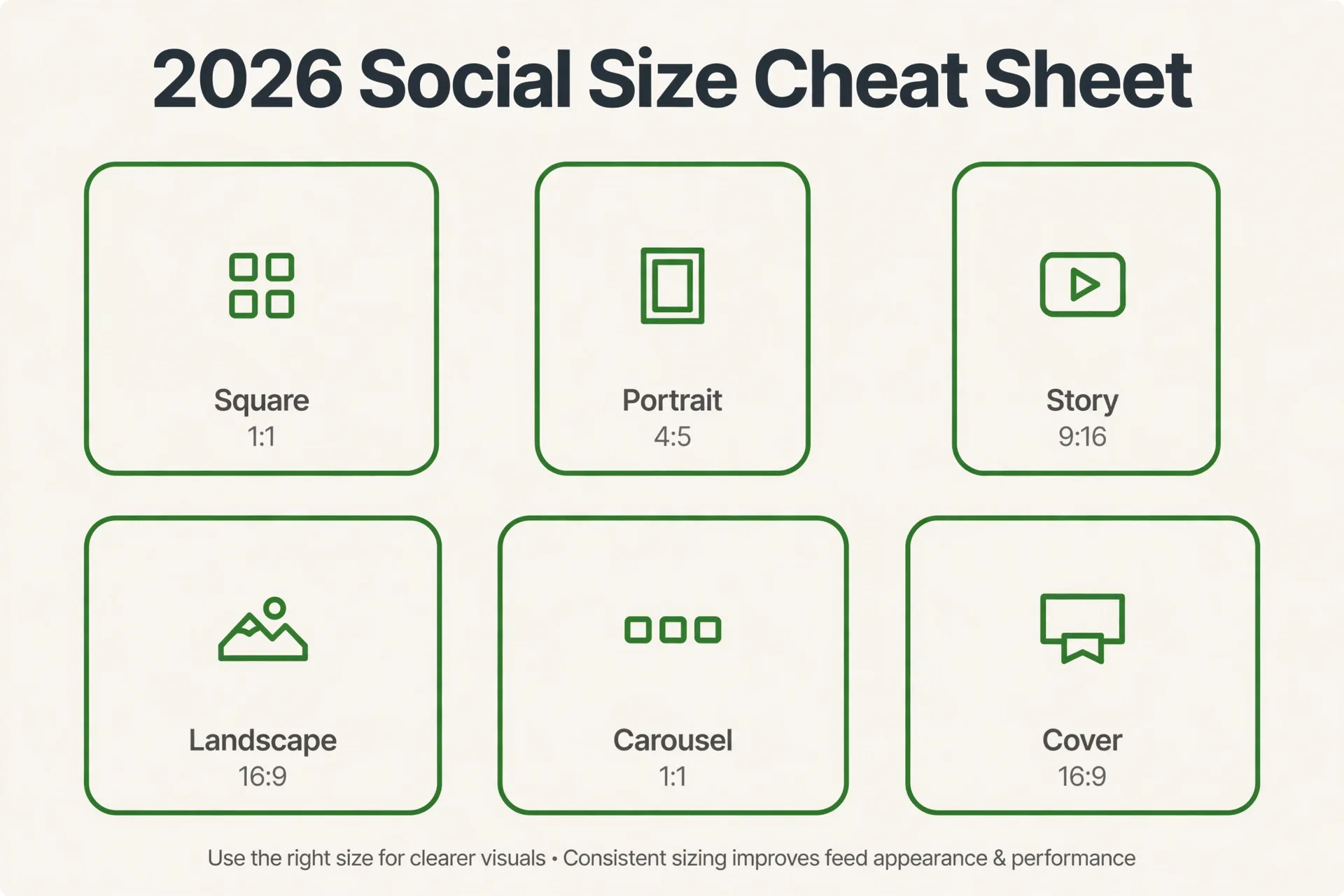
Platform specifications change regularly — feed ratios, safe zones, and recommended resolutions get revised as apps evolve. Rather than memorizing numbers, treat the table below as your current working reference and verify before a big campaign. Our sizing source for this section is Sprout Social’s regularly updated social media image sizes guide, which tracks platform specs as they change.
| Platform | Format | Recommended size | Notes |
|---|---|---|---|
| Feed post (portrait) | 1080 × 1350 px (4:5) | Tallest feed crop; more screen space than square | |
| Feed post (square) | 1080 × 1080 px (1:1) | Still supported; portrait generally earns more feed area | |
| Instagram / Facebook | Story and Reel cover | 1080 × 1920 px (9:16) | Keep key text inside the center safe zone |
| Feed image | 1080 × 1350 px (4:5) or 1200 × 630 px | Portrait works well in mobile feed; landscape suits link shares | |
| Link share image | 1200 × 630 px (1.91:1) | Matches the standard link preview ratio | |
| Feed image | 1080 × 1080 px (1:1) or 1200 × 627 px | Square and landscape both display cleanly | |
| X (Twitter) | Feed image | 1600 × 900 px (16:9) | Landscape avoids aggressive in-feed cropping |
| YouTube | Thumbnail | 1280 × 720 px (16:9) | Must stay legible at very small sizes in search results |
| Standard Pin | 1000 × 1500 px (2:3) | Tall formats suit the platform’s vertical layout |
A few principles matter more than the exact pixels. First, design at the largest reasonable resolution and export down; upscaling a small file produces soft, unprofessional images. Second, remember that feeds crop dynamically depending on the device, so keep your logo, headline, and any critical detail away from the edges. Third, check how your graphic renders on an actual phone before publishing — desktop previews hide cropping problems that mobile reveals immediately.
File format matters too. Use PNG for graphics with text, sharp edges, or logos, and high-quality JPG for photography-led images. Avoid uploading heavily compressed files, because platforms compress again on their end and compounding compression turns text fuzzy fast.
One habit that separates organized teams from the rest: master files. Build each graphic once at the largest size you’ll need, keep that editable master in your asset library, and export the platform-specific versions from it. When a spec changes next year, you re-export rather than redesign. The same discipline applies to aspect ratios — design the composition for the ratio first, then export at whatever pixel dimensions the platform currently recommends, because ratios determine how an image is cropped while pixel counts largely determine sharpness.
Formats That Perform: What to Make More Of
Format choice shapes whether people stop on your post, swipe through it, or save it for later. The formats below earn their place in a small-business content mix because they match how people actually consume feeds — quickly, mostly on phones, and often with the sound off. There are no tricks here; it’s about packaging useful information in shapes the platforms naturally favor.
Carousels
A carousel spreads one idea across several slides: a question on the first, the substance in the middle, and a summary or prompt at the end. Carousels work well for teaching, because each slide carries a single step and the swipe mechanic keeps people moving. They also give followers something to save — a checklist or sequence they’ll want to refer back to. Design-wise, treat slide one like a headline: it has to earn the swipe. Keep slide sizes consistent so the sequence doesn’t jump around as people swipe.
Short vertical graphics
Vertical graphics sized for Stories, Reels covers, and vertical feeds (1080 × 1920) fill the whole phone screen, which simply gives your message more presence than a small square lost between other posts. Use them for announcements, quick tips, and repurposed moments from longer content. Keep text inside the safe zone — platform buttons and captions overlap the top and bottom of the frame.
Quote and insight cards
A short, well-set quote card is shareable and fast to produce. The discipline here is honesty: use genuine customer words, your own observations, or well-known principles — never invented numbers. A stat card built on a fabricated figure damages credibility the moment someone checks it. If you do cite a real figure, name the source on the card itself so the claim travels with its evidence.
Before-and-after graphics
Side-by-side comparisons are intuitive: no explanation needed. They’re a natural fit for designers, remodelers, landscapers, salons, and anyone whose work produces a visible change. Keep both images at the same angle and crop so the comparison is fair and instantly readable. Avoid filters that exaggerate the difference; the honest version is more persuasive.
Checklists and how-to cards
Numbered steps and short checklists package your expertise into something followers can save and reuse. They perform the quiet work of positioning: every useful list makes your business the one that taught them something. Format them with generous spacing and a clear hierarchy so the steps read in seconds.
Photo treatments
When your feed mixes photography with designed graphics, a consistent photo treatment ties it together: the same warmth or coolness, similar contrast, an occasional branded color overlay. Without it, stock photos from different shoots make the feed look assembled from other people’s brands. You don’t need elaborate effects; a simple, repeatable adjustment applied the same way every time is enough to make varied photography feel like one business.
Whichever formats you lean on, rotate them. A feed of nothing but quote cards goes stale quickly; a feed of nothing but announcements reads like a noticeboard. A healthy mix — teach, show, prove, announce — keeps the design system feeling fresh without reinventing it each week.
Design Rules for the Feed
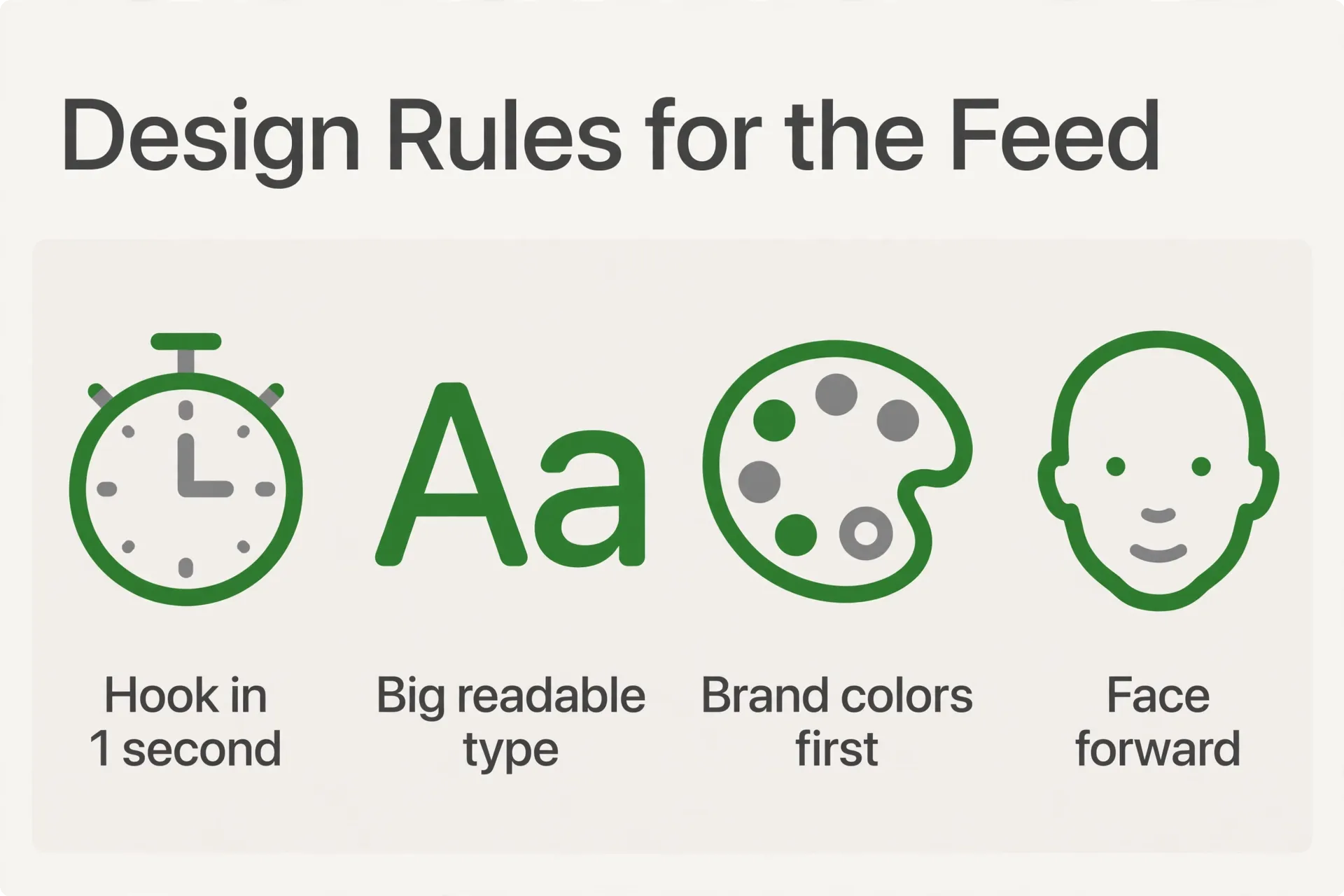
Feed design is design under hostile conditions. Your graphic competes with family photos, news, and video, at small sizes, on moving screens, in bright sunlight. These rules keep your message intact under those conditions.
One idea per graphic
The single most common social design failure is cramming. A graphic that announces a sale, lists store hours, mentions a new product, and includes a testimonial communicates none of those things. Research on how people read screens shows they scan rather than read, taking in fragments in an F-shaped scanning pattern, and that behavior is even more pronounced in a fast-moving feed. Give each graphic one job: one message, one takeaway, one next step.
Legibility at thumbnail size
Before you publish, shrink your graphic to the size of a postage stamp — roughly how it appears in search results, profiles, and notifications. If you can’t read the headline, neither can your audience. Headlines should be set large enough that they’re the dominant element; body text on graphics should be minimal or moved into the caption. If a graphic needs a paragraph to make sense, it’s a blog post wearing a costume.
Contrast
Text over photography is where readability goes to die. A white headline across a busy sky-and-crowd photo might look stylish on a monitor and vanish on a phone outdoors. WCAG guidance treats a contrast ratio of at least 4.5:1 as the minimum for normal text, and that standard is a useful floor for graphics too — see the W3C’s explanation of contrast minimum requirements. Practically: put text on solid brand-color panels, add a subtle shadow panel behind text over photos, or choose quieter image areas for type.
Safe zones
Platform interfaces cover parts of your image: profile pictures and like buttons on Stories and Reels, captions along the bottom, platform logos in corners. Keep headlines, logos, and faces out of the top and bottom bands of vertical graphics. Build safe zones into your templates so nobody has to remember the rule each time.
Pair the graphic with its caption
A graphic doesn’t work alone; it works with the caption beneath it. Design them as a unit. The graphic’s job is to stop the scroll and land one idea; the caption’s job is the detail, the context, and the next step. When teams design graphics that try to say everything, they usually end up with captions that repeat the image, and both get weaker. Decide deliberately what lives in the picture and what lives in the text below it, and let each do its own work.
Brand consistency
Consistency is what turns individual posts into a recognizable presence. The aesthetic-usability effect describes how people perceive attractive, coherent design as easier to use and more trustworthy — and in a feed, that trust often has to form in under a second. Use the same two or three fonts, the same color palette, and a consistent logo placement across every graphic. Followers should be able to identify your post mid-scroll before reading your handle. That recognition compounds: it’s the difference between a feed that builds a brand and a folder of unrelated announcements.
Building a Template System

Consistency at volume doesn’t come from willpower; it comes from templates. A template system is a small library of locked layouts — one for tips, one for quotes, one for announcements, one for before-and-afters, one for carousels — where the structure stays fixed and only the content changes. That structure is what keeps forty posts a month looking like one brand instead of forty separate experiments.
What a good template library includes
Start with five or six core layouts in each size you publish regularly: square or portrait for feeds, vertical for Stories and Reels. Each template should have preset type styles (headline, supporting text, caption), fixed logo placement, brand colors preloaded, and safe zones visibly marked. The goal is that producing a finished graphic becomes a fill-in task: swap the photo, update the headline, export.
Lock the brand elements, loosen the content
The most useful templates lock what’s structural — margins, type sizes, colors, logo position — while leaving imagery and wording open. Over-locked templates make everything look identical and robotic; under-locked ones drift until the brand dissolves. As a rule, the further a design decision is from your brand’s identity, the more freedom it’s safe to allow.
Build an asset library alongside
Templates save time only if the raw materials are at hand. Keep a shared library of approved photography, product shots, icons, and textures, organized the way your team thinks (“food close-ups,” “team at work,” “finished projects”) rather than by date or file name. Retire assets that look dated; an old photo library silently drags down every new template.
Name files so anyone can find them
A template system quietly fails when nobody can locate the files. Agree on a simple naming convention — campaign or topic, format, size, date — and store masters, exports, and approved images in one place rather than scattered across laptops and chat threads. When a team member leaves, the system stays. This sounds mundane until the first time someone publishes an outdated graphic because the current version was saved on a former employee’s desktop.
Workflow: who touches what
Decide who writes the copy, who assembles the graphic, and who approves it — and write that down. A lightweight review step catches the classic errors: the old logo, the expired offer, the typo in the headline. Batch production helps too: designing a week or a month of graphics in one sitting keeps quality even and is faster than one-off sessions. Finally, schedule a template refresh every few months. Templates are a system, not a life sentence; reviewing what’s working and updating the layouts keeps the feed current without constant reinvention.
Accessibility on Social Graphics
Accessibility in social design means your message reaches people who rely on screen readers, magnification, or reduced visual contrast — a broad group that includes many of your customers. The W3C’s introduction to web accessibility frames it well: accessibility is about making content usable by people with diverse abilities, and the same principles apply to graphics in a feed.
Write alt text that carries the message
Every platform offers a field for alternative text; use it. Good alt text describes the information, not the decoration: “Checklist: five steps for preparing your home for winter” tells a screen-reader user what the graphic says, while “image of a checklist” tells them nothing. If the graphic contains essential text — an announcement date, a deadline, an offer — that text belongs in the alt text or the caption, word for word.
Never put critical information only inside the image
Details that matter (dates, times, requirements, where to register) should always also live in the post caption in plain text. Captions are searchable, translatable, and readable by assistive technology; text baked into an image is none of those. Treat the graphic as the billboard and the caption as the fine print — the audience needs both.
Apply contrast and type rules
The contrast guidance from the design-rules section does double duty here. Beyond ratio, avoid thin typefaces at small sizes, avoid red-green pairings as the only way information is coded, and don’t animate text so quickly it can’t be read. If you publish video-adjacent graphics, captions on the video itself serve the same audience.
Make it a checklist, not a memory test
Build accessibility into your templates and your review step: alt text written, contrast checked, critical details duplicated in the caption. When it’s part of the workflow, it costs almost nothing; when it’s a retrofit, it rarely happens. Accessible graphics also simply work better for everyone — clearer type and stronger contrast read faster for every follower scrolling in bright light.
Further Reading
- Our pillar guide: graphic design services for small business — the full picture of design services and how they fit together.
- Brand Identity Design: What’s Included Beyond the Logo — the identity system your social templates should be built from.
- Marketing Collateral Design: Flyers, Brochures & Decks That Convert — the same design discipline applied to print and presentation pieces.
Putting It Into Practice
If your current social graphics are a mix of sizes, fonts, and one-off improvisations, the fix isn’t more design effort — it’s a system: correct sizes as the foundation, a handful of proven formats, templates your team can run without a designer’s help every time, and accessibility checks built into the workflow. That’s the structure we use when we design social graphics for businesses that need consistent output week after week without a full-time designer on staff.
If you’d like help building that system for your business — the templates, the asset library, and the workflow to keep it running — contact us and tell us where you’re starting from. We’ll help you turn your feed into something your customers recognize on sight.
Frequently Asked Questions
Major platforms revise their recommended sizes and crop behavior periodically, sometimes a few times a year when they redesign the feed. Rather than memorizing dimensions, build your templates at generous resolutions and keep text away from edges. Before a large campaign, check a maintained sizes reference to confirm current specs, and adjust templates only when the platform actually changes how images display.
Templates are the practical choice for most small businesses. They keep colors, fonts, and layout consistent, speed up production, and make it possible for a whole team to produce on-brand graphics. Reserve fully custom design for major announcements or campaigns. A good approach is a small library of five or six templates, refreshed every few months so the feed doesn't feel stale.
Carousels give you room to teach: one idea per slide, with the first slide acting as a headline that earns the swipe. They suit step-by-step content, checklists, and before-and-after stories, and readers can save them for later reference. Single images still work well for announcements and photography. Choose the format that fits the content rather than forcing everything into one shape.
Start from your brand style guide: exact color values, approved fonts, and logo clear-space rules. Load those assets into your templates so every graphic starts from the same palette, and export images in a consistent format and color profile. Colors shift slightly between screens, but if every post uses identical source values, your feed reads as one recognizable brand.
Review your templates every few months. Refresh when the layouts start feeling repetitive, when platform sizes change, or when your brand identity evolves. Refreshing doesn't mean starting over: update photography, adjust a layout or two, and retire designs that look dated. The underlying structure, colors, and type system should stay stable so recognition isn't lost.
Most people browse social media on phones, held vertically. A vertical graphic at 1080 by 1920 pixels fills the entire screen, so your message gets more presence than a small landscape image surrounded by other content. Vertical formats suit Stories, Reels, and mobile feeds. Keep important text and faces in the middle of the frame, away from interface buttons and captions.
Alt text is a short written description of an image that screen readers speak aloud for people who can't see it. Write the message the graphic carries, not a description of the artwork: the announcement, the steps on the checklist, the offer details. Every major platform has an alt text field. Using it takes a minute and makes your content reachable to a much wider audience.
It's risky. Text baked into an image can't be read by screen readers, searched, or translated, and it often becomes hard to read on small screens. Put the key point in the graphic to stop the scroll, then place the full details, including dates, times, and requirements, in the post caption as plain text. That way everyone, including assistive technology users, gets the complete message.
As little as possible. Give each graphic one idea: a short headline and maybe a brief supporting line. If your message needs a paragraph, it belongs in the caption or in a linked article, not in the image. Test legibility by shrinking the graphic to the size of a thumbnail. If you can still read the main message instantly, it's ready to publish.
The visible markers are consistency and restraint: the same fonts and colors across posts, generous white space, one message per graphic, strong contrast so text reads easily, and photography that isn't stretched or heavily filtered. Professional feeds also avoid clutter, no stack of logos, borders, and competing messages. A simple template system produces this impression reliably without a designer touching every post.